


This walkthrough shows you how to enable mail merge with custom collection in WebTextEditor.
During this walkthrough, you will learn how to do the following:
- Enable mail merge
- Bound custom collection to WebTextEditor for mail merge purpose.
 Prerequisites
In order to complete this walkthrough, you will need the following:
- Visual Studio 2008 Application.
- Mail server for sending the email
Step-By-Step Instructions
To enable mail merge with custom collection
- Launch Visual Studio.NET 2008.
- Click on File menu, then select New and click Web Site.
- Select ASP.NET Web Site in the Template box and set Location to HTTP.
- Named the Web Site and click OK.
- Right-click on Project's name and select Add New Item.
- Select WebForm in the My Templates box and named it as Walkthrough.aspx.
- Drag WebTextEditor instance from ToolBar to WebForm.
- Create a custom object ISEmployee in the WebForm code page. Here is the snippet:
C#  Copy Code
publicclass ISEmployee

{
   public int EmployeeID { get; set; }
   public string FirstName { get; set; }
   public string LastName { get; set; }
   public string Address { get; set; }
   public string City { get; set; }
   public string Country { get; set; }
   public string Email { get; set; }
}
- Create a function to bind the custom collection to the WebTextEditor control which called during page load server side event. Here is the snippet:
C# Copy Code
private void BindCustomCollection()

{

   List<ISEmployee> employees = new List<ISEmployee>();


    ISEmployee emp = new ISEmployee();

   emp.EmployeeID = 1;

   emp.FirstName = "Nancy";

   emp.LastName = "Davolio";

   emp.Address = "Bridge Street";

   emp.City = "London";

   emp.Country = "UK";

   emp.Email = "ndavolio@employee.com";

   employees.Add(emp);


    emp = new ISEmployee();

   emp.EmployeeID = 2;

   emp.FirstName = "Andrew";

   emp.LastName = "Fuller";

   emp.Address = "Wood Street";

   emp.City = "Washington";

   emp.Country = "USA";

   emp.Email = "afuller@employee.com";

   employees.Add(emp);


    WebTextEditor1.MailMergeSettings.Recipients = employees;

}
- Enable the MailMerge feature and add the required label for the mail merge in the Labels collection. The EmailField property will bind Email field from the collection. The SubjectExpression property also accepts MailMerge labels.
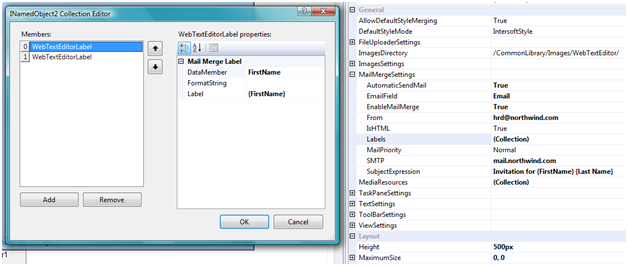
- Set the Content property of the WebTextEditor under the RootTextEditor section for the Mail Merge template. For example:
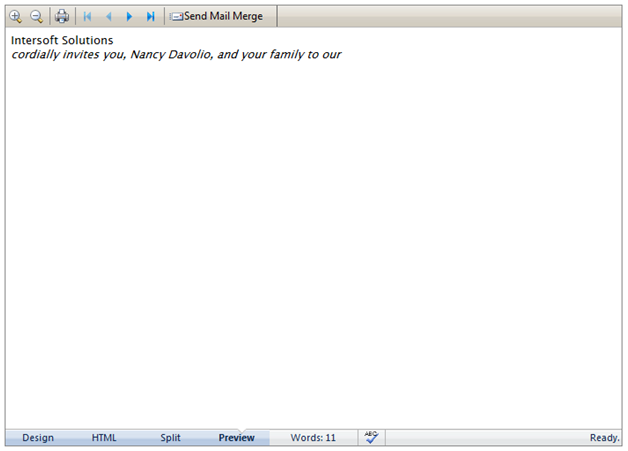
<div><span>Intersoft Solutions</span><br /><span><em>cordially invites you, <span type="mailmerge">{FirstName}</span> <span type="mailmerge">{LastName}</span>, and your family to our</em></span></div>
The <span type="mailmerge">{FirstName}</span> will be substitute by the labels decalred in the MailMerge WebTextEditor section.
- Set EnablePreview to true under the ViewSetting section to enable Mail Merge preview.
 See Also
Tasks
{Walkthrough: Enabling Mail Merge with Data Bound Collection}
Other Resources
{Mail Merge}